
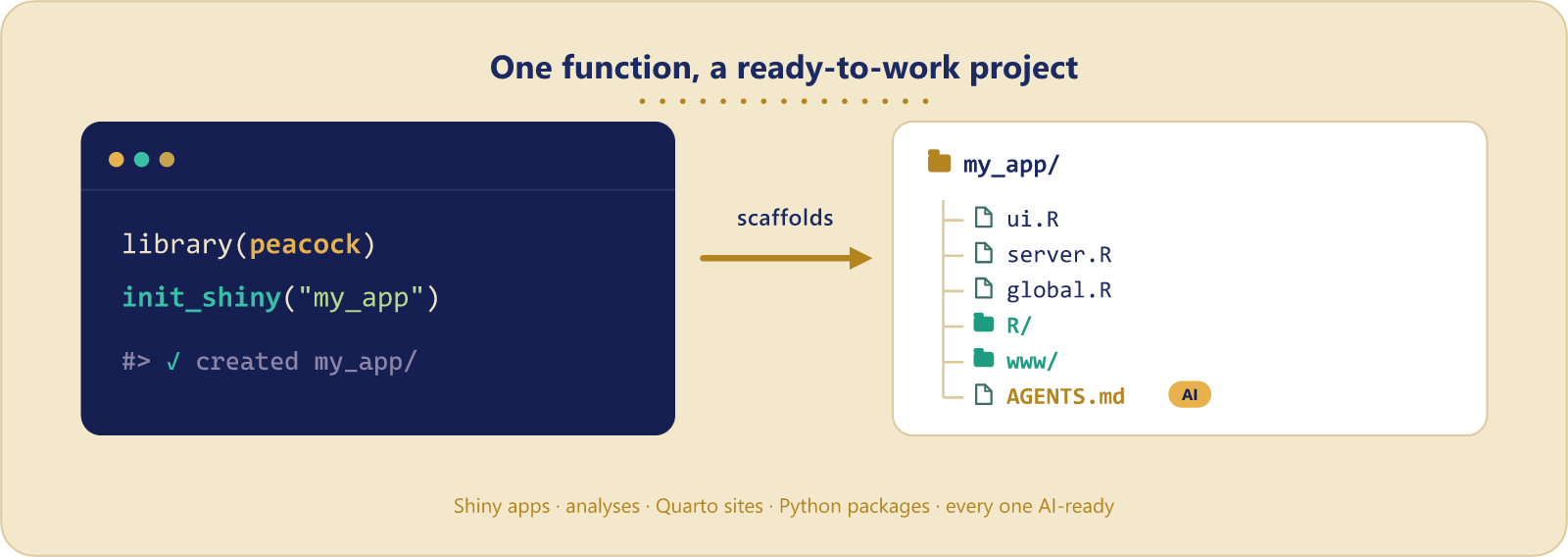
peacock helps you quickly set up new R projects with pre-configured directory structures and files. Stop creating the same folders and files manually every time you start a project. Just run a function and get working.
Why peacock?
When starting a new project, you probably find yourself:
- Creating the same folders over and over (data, scripts, outputs)
- Setting up Shiny apps with the same basic structure
- Writing boilerplate code for UI, server, and global files
- Manually organizing files for reproducible research
peacock automates this. It gives you clean, organized project templates so you can start coding immediately.
Installation
Install from GitHub:
# install.packages("devtools")
devtools::install_github("samuelbharti/peacock")
What can peacock do?
1. Initialize a Shiny app structure
Creates a complete Shiny app with organized folders and starter files.
library(peacock)

# Set up a new Shiny project
init_shiny(path = "my_shiny_app")
This creates:
-
ui.R,server.R,global.R- Your main Shiny files -
modules/- For modular Shiny components -
userInterface/- UI components organized separately -
www/- Static files (CSS, images, JavaScript) -
data/,R/,dev/- Standard project folders -
Dockerfile- Ready for containerization -
.gitignoreand.Renviron- Project configuration
2. Create a changelog
Track project changes in a structured markdown file.
init_changelog_md(path = "my_project")Creates a CHANGELOG.md file with a simple format for documenting your work.
3. Use GitHub templates
Pull down complete project templates from GitHub. Use a built-in name, or any GitHub repository as "owner/repo" (optionally pinned with "owner/repo@ref").
# Built-in templates
init_template("shiny", path = "my_project")
init_template("cgds", path = "research_project")

# Any GitHub repo, optionally pinned to a branch, tag, or commit
init_template("owner/repo", path = "my_project")
init_template("owner/repo@dev", path = "my_project")

# See the built-in templates
peacock_templates()
The CGDS template is part of the UAB CGDS research workflow.
4. Set up tool review projects
Organize projects that compare multiple tools or methods.
tool_review_template(
  tool_name = c("tool1", "tool2", "tool3"),
  tool_url = c("https://tool1.com", "https://tool2.com", "https://tool3.com"),
  path = "tool_comparison"
)
This creates organized folders for data, scripts, outputs, and documentation for each tool.
5. Scaffold a reproducible analysis project
Set up a tidy layout for a data-analysis or research project.
init_analysis(path = "my_study")Creates data/{raw,processed}, R/, analysis/ (with a starter Quarto notebook), and output/{figures,tables}, plus a README and .gitignore.
6. Scaffold a Quarto project
Create a Quarto website, book, or manuscript.
init_quarto(path = "my_site", type = "website")type can be "website" (default), "book", or "manuscript"; each gets a _quarto.yml and starter documents.
7. Scaffold a Python project
peacock stays an R package, but it can emit a Python project too.
init_python(path = "my_pkg")Creates a src-layout package with pyproject.toml (ruff + pytest), a starter module and test, .gitignore, and AGENTS.md.
RStudio Integration
Once installed, peacock adds an RStudio Add-in for quick access:
- Find “Peacock: Shiny Template” in the Addins menu
- Or create a new project and select “Peacock: Shiny Template” from the templates
Quick start
library(peacock)

# Create a new Shiny app in the current directory
init_shiny()

# Or specify a path
init_shiny(path = "path/to/new/project", confirm = FALSE)
Set confirm = FALSE to skip the confirmation prompt (useful for scripting).
Learn more
- Full documentation: http://www.samuelbharti.com/peacock/
- Vignette:
vignette("introduction") - Issues and feedback: https://github.com/samuelbharti/peacock/issues